Lab Tagging
October 11, 2015 - Reading time: ~1 minute
Available on update version 1.55
Organize the lab list with tags.
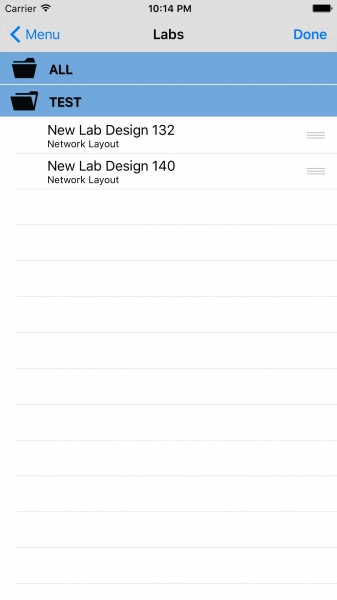
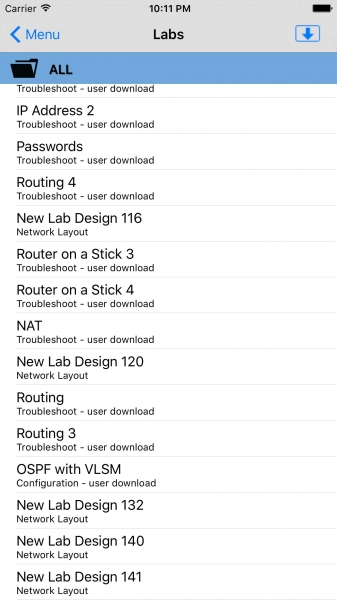
Notice the new ALL folder when viewing the labs table.
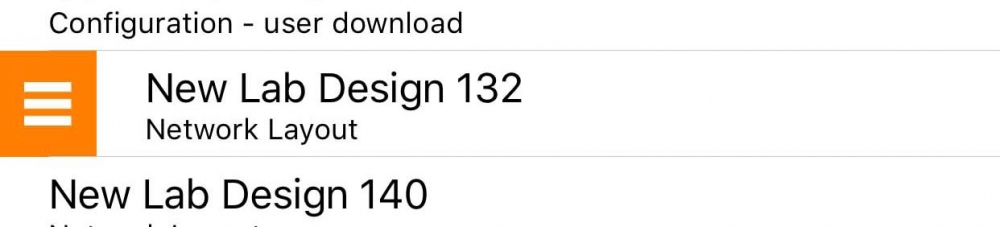
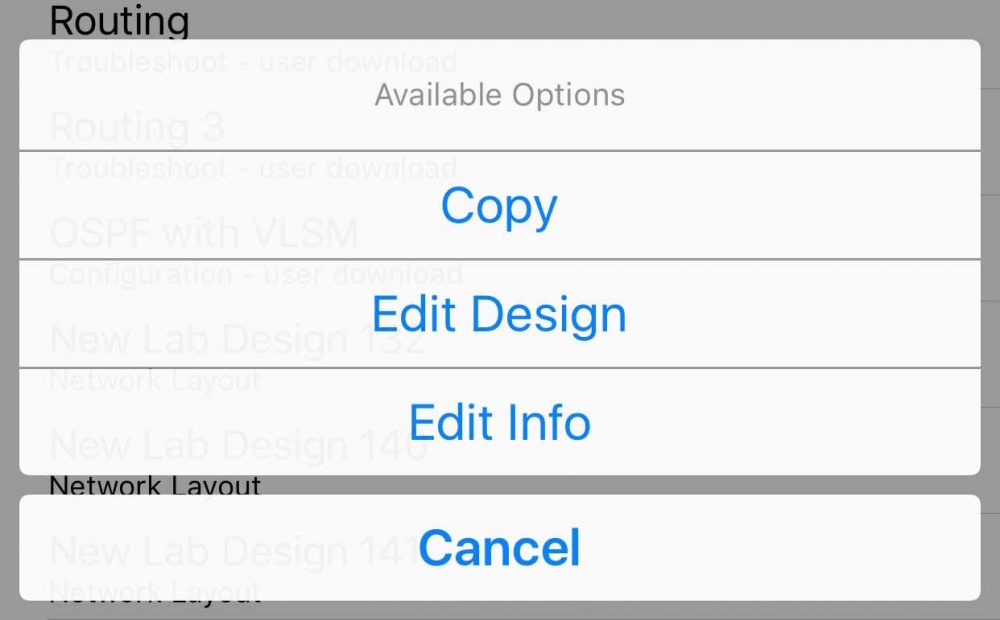
To add a tag to a network layout, select the Edit Info option from the labs menu after right swiping a user designed lab.
Type a tag information. Separate multiple tags with a comma. Save.
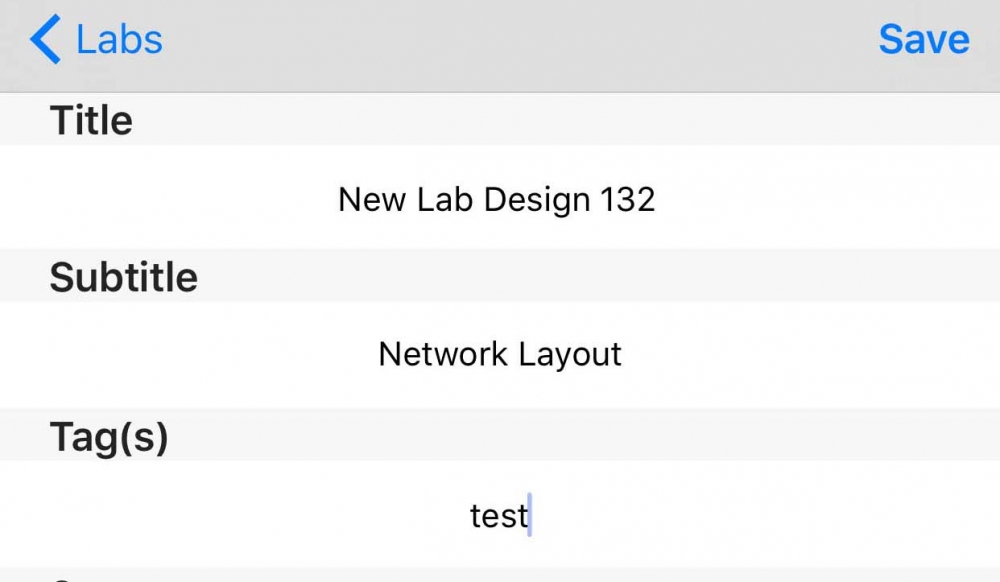
A new folder will be created from the tag(s) entered: TEST in this example.
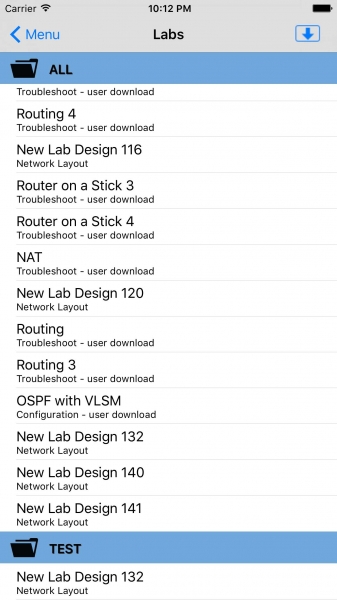
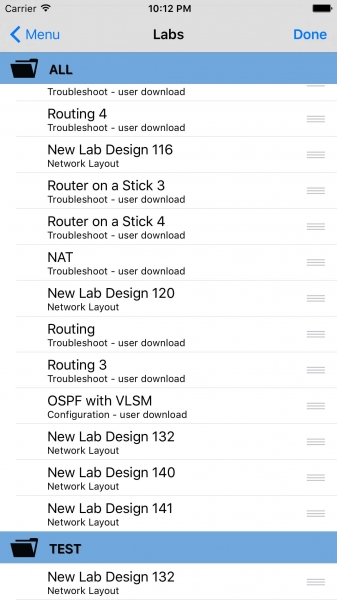
Once a folder is created, the option to drag and drop becomes available. Hold down on a cell to activating the movement option. To remove a tag, edit the tag field, or drag the lab back to the ALL section.
The image below is after dragging New Lab Design 140 to the TEST section.
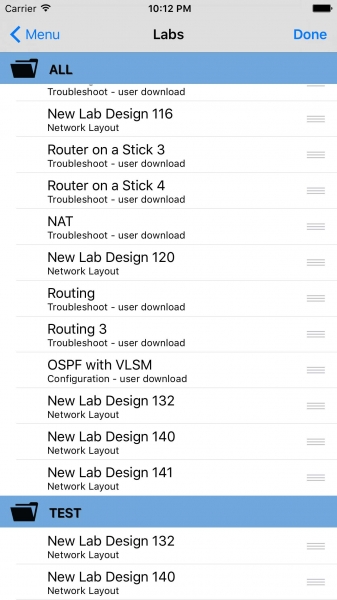
Labs can have multiple tags or belong to multiple folders. Tap the folder name to hide or show its contents.